

Assignment #2
Weekend at home (16-17.5) - finish the remaining UI before Monday's session.
You should have built the Create Account page and a basic Home page on Day 5. Use the weekend to finish the rest of the UI so we can start binding everything to Supabase in the following days.
Finish the Create Account page
Description
What is left to do is to create a Auth_BottomBar component and password matching logic.
Tasks
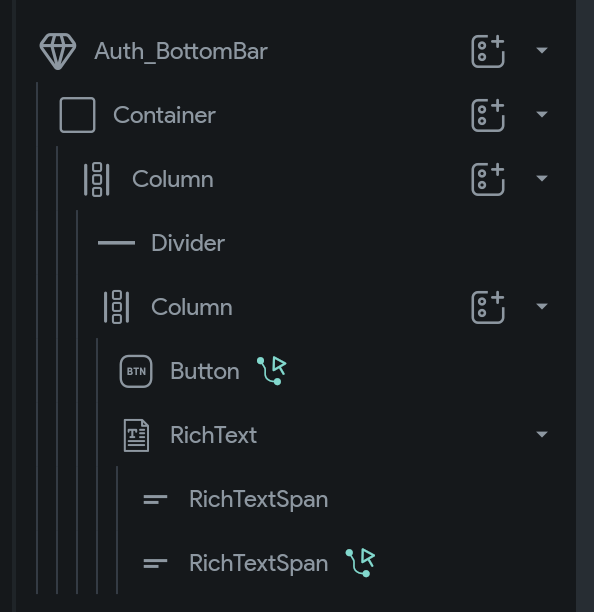
Auth_BottomBar component
- Craete a component from the created bottom bar widget we implemented.
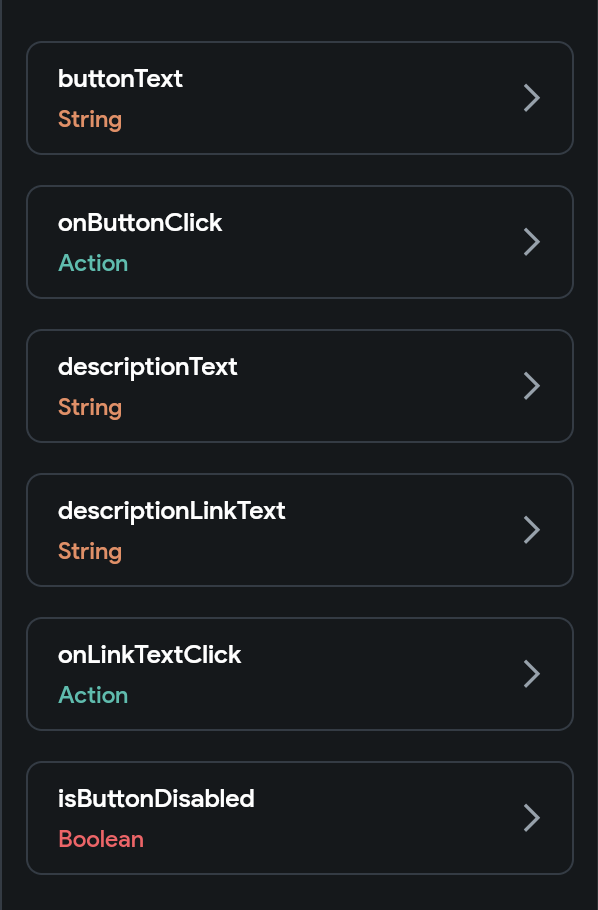
- Define parameters for the component (go through the possible options).
Solution
Widget tree
Parameters
Password matching logic
- Add a text widget that will display the password matching error message.
- Add a page state variable that will be used to display the password matching error message (
isPasswordMatching). - Use this page state variable to display the password matching error message (if
!isPasswordMatchingthen show error message). - Logic to show it will be added in upcoming days.
Add a back icon button
- Add a back icon button to the top bar.
- Add a logic to navigate back to the previous page when the user presses the back icon button.
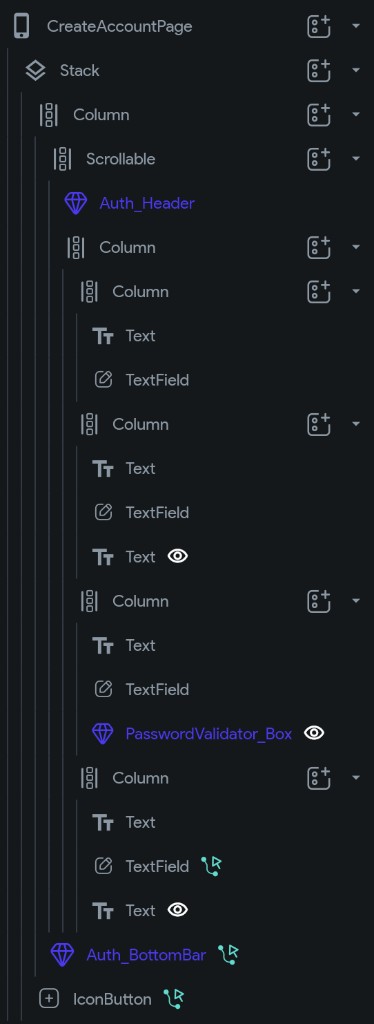
Final widget tree of the CreateAccountPage
Welcome page
Description
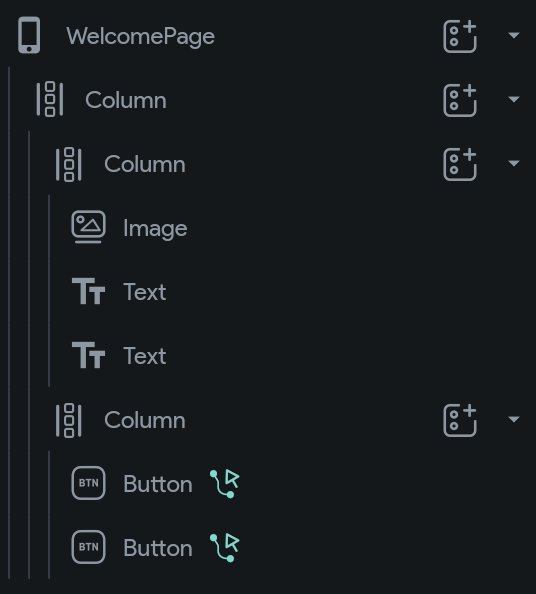
Finish the Welcome page that will be a entry page of the app. It will have two buttons: one to navigate to the Login page and one to navigate to the Create Account page.
Tasks
- build the page UI based on the Figma design.
- add a button that navigates to the Login page.
- add a button that navigates to the Create Account page.
- make sure that the column which holds the image, is expanded so that it takes the whole height of the screen.
Solution
Login page
Description
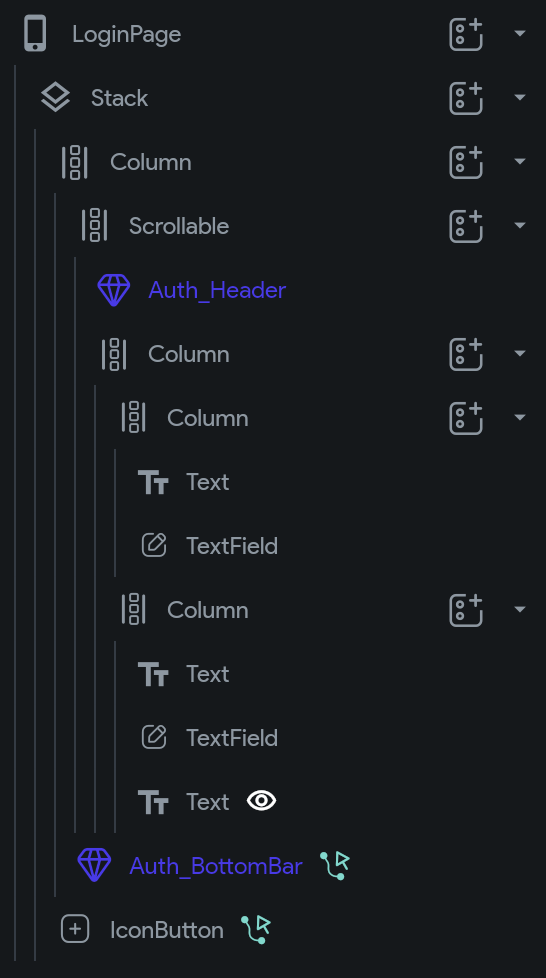
Finish the Login page that will be a page where the user can login to the app. Use as many components as possible from the Create Account page.
Tasks
- duplicate the CreateAccountPage and rename it to LoginPage.
- change the form fields to match the Login page.
- add a text widget that will display the login error message.
- add a page state variable that will be used to display the login error message (
isLoginError). - use this page state variable to display the login error message (if
isLoginErrorthen show error message). - logic to show it will be added in upcoming days.
Solution
Home page
Description
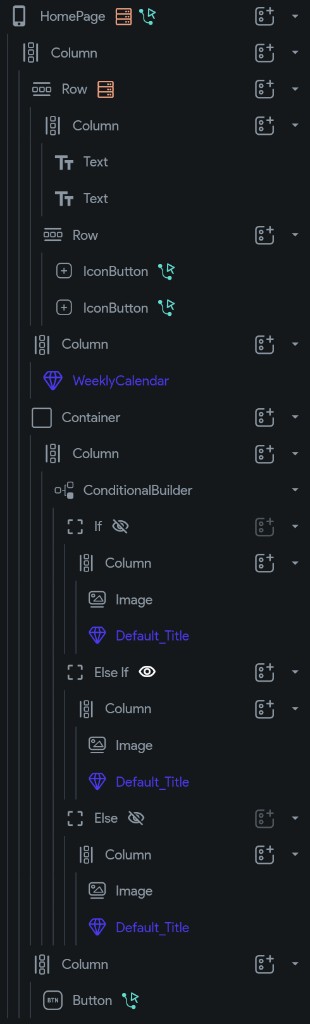
Create the Home page that will be a page where the user can see the home page of the app. It will have a top bar, a weekly calendar, and a conditional builder that will display the home page content based on the user's state. Before you start craete a home folder in the pages folder and a components folder inside of it.
Tasks
Top bar
- since this component is used only on home, we don't need to create a reusable component for it.
- build the top bar layout from the Figma file.
- bind the current date to the text widget with correct formatting.
- add a logout and info icon button to the top bar.
How to play bottom sheet
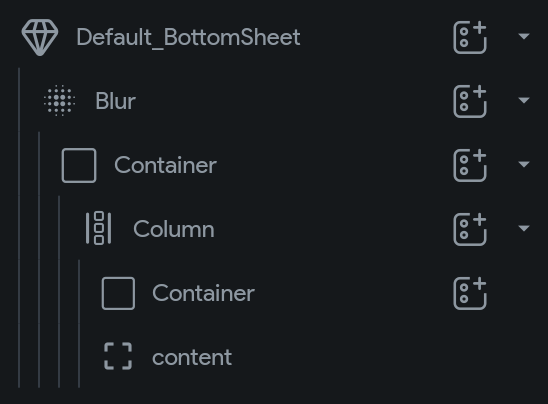
- first create common layout for the bottom sheet component that will hold the bottom sheet content.
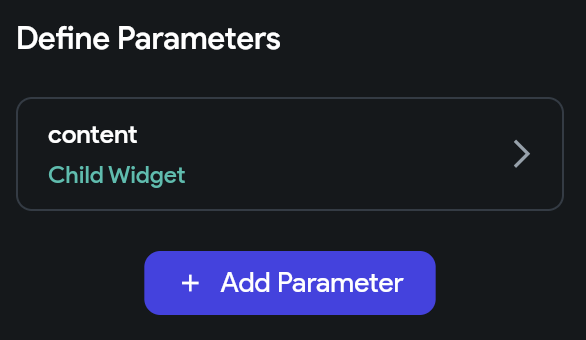
- define content parameter that will be used to display the bottom sheet content.
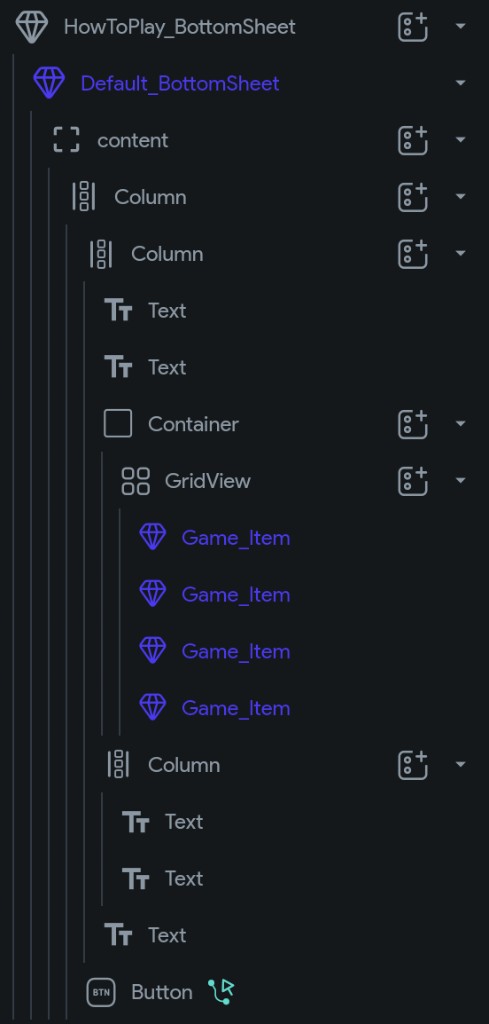
- create the how to play bottom sheet content layout.
Solution
Default_BottomSheet widget tree
Default_BottomSheet parameters
HowToPlay_BottomSheet widget tree
Weekly Calendar
- create a custom widget for the weekly calendar,
- add the custom widget to the home page.
- use this boilerplate code to start:
class WeeklyCalendar extends StatefulWidget {
  const WeeklyCalendar({
    super.key,
    this.width,
    this.height,
    required this.attempts,
  });

  final double? width;
  final double? height;
  final List<AttemptStruct> attempts;

  @override
  State<WeeklyCalendar> createState() => _WeeklyCalendarState();
}

class _WeeklyCalendarState extends State<WeeklyCalendar> {
  @override
  Widget build(BuildContext context) {
    return Container();
  }
}
Solution
import 'package:cluster/auth/supabase_auth/auth_util.dart';
import 'package:intl/intl.dart';

class WeeklyCalendar extends StatefulWidget {
  const WeeklyCalendar({
    super.key,
    this.width,
    this.height,
    required this.attempts,
  });

  final double? width;
  final double? height;
  final List<AttemptStruct> attempts;

  @override
  State<WeeklyCalendar> createState() => _WeeklyCalendarState();
}

class _WeeklyCalendarState extends State<WeeklyCalendar> {
  static const _dayLabels = <String>[
    'MON',
    'TUE',
    'WED',
    'THU',
    'FRI',
    'SAT',
    'SUN'
  ];

  DateTime _dateOnly(DateTime date) =>
      DateTime(date.year, date.month, date.day);

  DateTime? _parseAttemptDate(String raw) {
    if (raw.isEmpty) {
      return null;
    }

    final parsed = DateTime.tryParse(raw);
    if (parsed != null) {
      return _dateOnly(parsed.toLocal());
    }

    const fallbackFormats = <String>['yyyy-MM-dd', 'dd.MM.yyyy', 'MM/dd/yyyy'];
    for (final pattern in fallbackFormats) {
      try {
        final fallback = DateFormat(pattern).parseStrict(raw);
        return _dateOnly(fallback);
      } catch (_) {
        // Keep trying known fallback formats.
      }
    }

    return null;
  }

  bool _solvedForDate(DateTime day, Map<String, AttemptStruct> attemptsByDay) {
    final key = DateFormat('yyyy-MM-dd').format(day);
    return attemptsByDay[key]?.solved == true;
  }

  bool _attemptedForDate(
      DateTime day, Map<String, AttemptStruct> attemptsByDay) {
    final key = DateFormat('yyyy-MM-dd').format(day);
    return attemptsByDay[key]?.attempted == true;
  }

  String _completedAtForDate(
      DateTime day, Map<String, AttemptStruct> attemptsByDay) {
    final key = DateFormat('yyyy-MM-dd').format(day);
    return attemptsByDay[key]?.completedAt ?? '';
  }

  bool _isToday(DateTime day) {
    final today = _dateOnly(getCurrentTimestamp.toLocal());
    return day == today;
  }

  Widget _widgetForStatus(
      DateTime day, bool solved, String completedAt, bool attempted) {
    if (completedAt.isNotEmpty && solved) {
      return Image.asset(
        'assets/images/win.png',
        width: 32,
        height: 32,
      );
    } else if ((!_isToday(day) && attempted) ||
        (_isToday(day) && completedAt.isNotEmpty)) {
      return Image.asset(
        'assets/images/lost.png',
        width: 32,
        height: 32,
      );
    } else if (_isToday(day)) {
      return Container(
        width: 32,
        height: 32,
        decoration: BoxDecoration(
          borderRadius: BorderRadius.circular(8),
          color: FlutterFlowTheme.of(context).alternate.withOpacity(0.7),
        ),
        child: Center(
          child: Text(
            day.day.toString(),
            style: FlutterFlowTheme.of(context)
                .labelMedium
                .copyWith(color: FlutterFlowTheme.of(context).primaryText),
          ),
        ),
      );
    } else {
      return Text(
        day.day.toString(),
        style: FlutterFlowTheme.of(context)
            .labelMedium
            .copyWith(color: FlutterFlowTheme.of(context).secondaryText),
      );
    }
  }

  @override
  Widget build(BuildContext context) {
    final today = _dateOnly(getCurrentTimestamp.toLocal());
    final weekDays = List<DateTime>.generate(
      7,
      (index) => today.subtract(Duration(days: 6 - index)),
    );

    final attemptsByDay = <String, AttemptStruct>{};

    for (final attempt in widget.attempts) {
      final parsedDay = _parseAttemptDate(attempt.date);

      if (parsedDay == null) {
        continue;
      }

      final dayKey = DateFormat('yyyy-MM-dd').format(parsedDay);

      attemptsByDay[dayKey] = attempt;
    }

    return SizedBox(
      width: double.infinity,
      child: Row(
        children: weekDays.map((day) {
          return Expanded(
            child: Column(
              mainAxisSize: MainAxisSize.min,
              children: [
                Padding(
                  padding: const EdgeInsets.all(8.0),
                  child: Text(
                    _dayLabels[day.weekday - 1],
                    style: FlutterFlowTheme.of(context).labelMedium.copyWith(
                          color: FlutterFlowTheme.of(context).muted,
                        ),
                  ),
                ),
                SizedBox(
                  width: 48,
                  height: 48,
                  child: Center(
                    child: _widgetForStatus(
                      day,
                      _solvedForDate(day, attemptsByDay),
                      _completedAtForDate(day, attemptsByDay),
                      _attemptedForDate(day, attemptsByDay),
                    ),
                  ),
                ),
              ],
            ),
          );
        }).toList(),
      ),
    );
  }
}
Final widget tree of the HomePage
Solution
Play page
Description
The PlayPage will be a page where the user can play the game. Before you start craete a play folder in the pages folder and a components folder inside of it.
Tasks
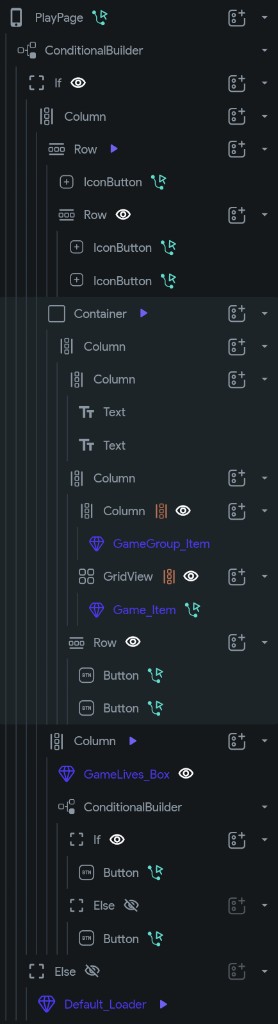
Play page UI
- add top bar with back, info and hint icon buttons.
- add a title section with the puzzle title.
- add a list of solved groups (define temporal page state variable for solved groups).
- create a component for the solved group item (pass group as parameter).
- add a grid of unsolved words (define temporal page state variable for unsolved words).
- create a component for the unsolved word item (pass word as parameter).
- add shuffle and deselect buttons.
- add bottom bar with lives and submit button.
Solution
Win bottom sheet
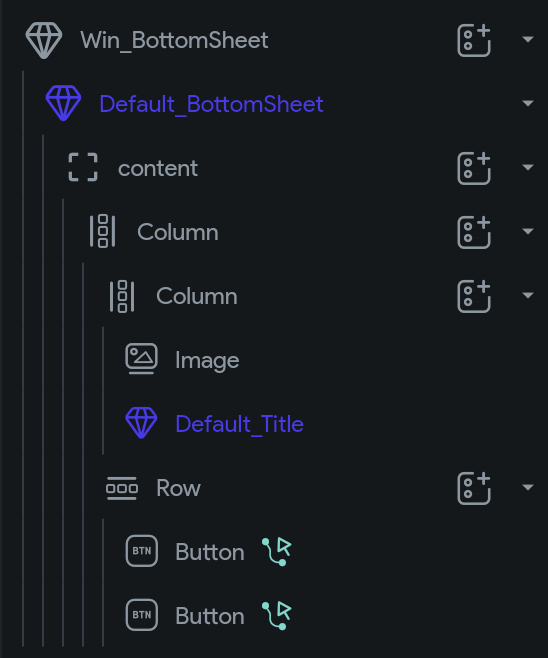
- create a widget for the win bottom sheet.
- reuse the same common layout for the bottom sheet component.
Solution
Lose bottom sheet
- create a widget for the lose bottom sheet.
- reuse the same common layout for the bottom sheet component.
Solution
The Lose bottom sheet uses the same widget tree as the Win bottom sheet - it just renders different content inside the reusable Default_BottomSheet.
If you get stuck
- There is a read-only access to the FlutterFlow project - click here. You can use it to see the final widget tree of the pages and components.
- Re-read the relevant section of Day 5 - Frontend foundations.
- Send us a message on Slack to get guidance from the mentors.
- Bring your blocker to Day 7 - we plan time for unblocking.